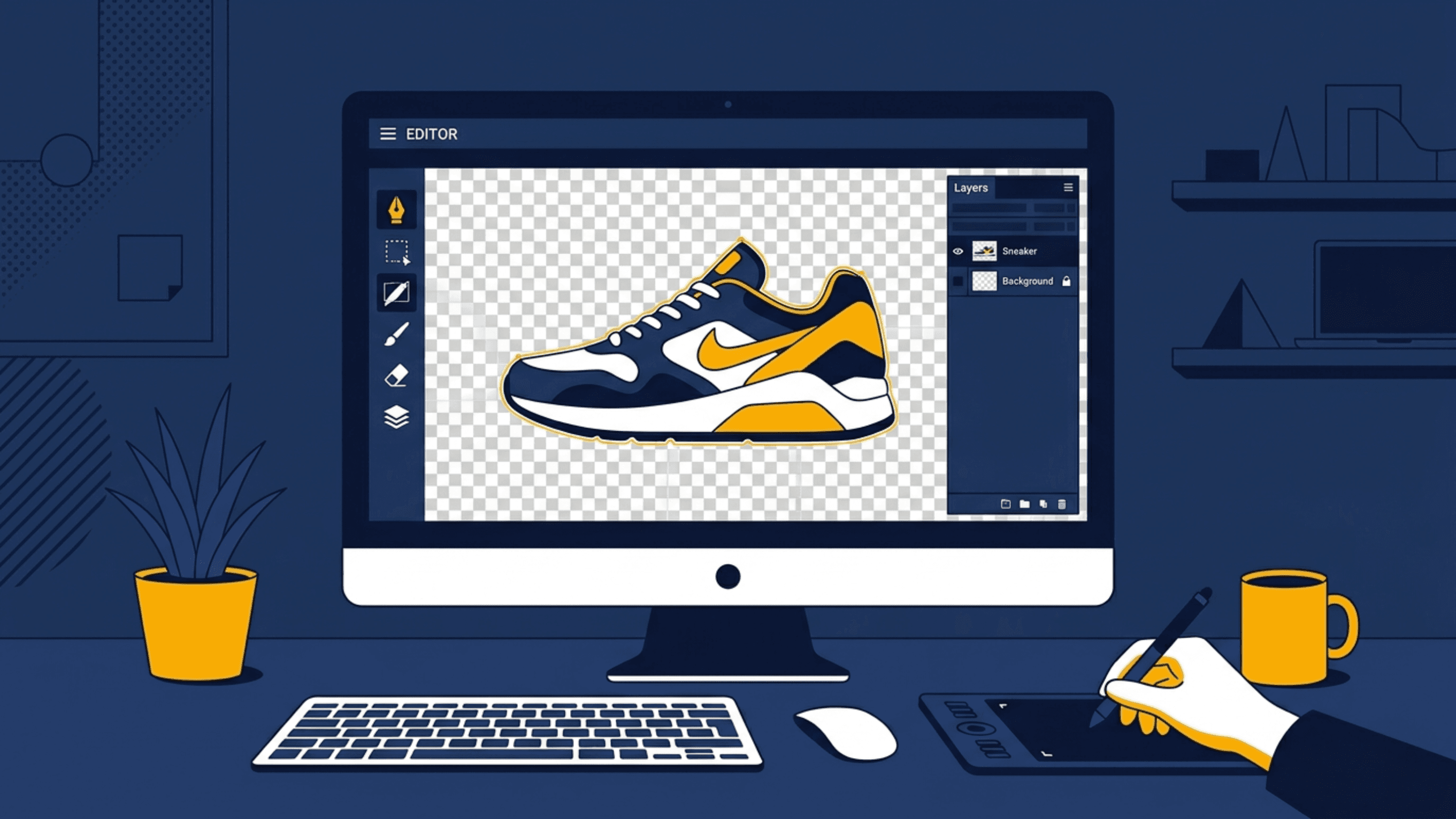
How to Remove Backgrounds (Remove Background) to Make Product Images Look Professional and Boost Online Sales
Why Product Images with Removed Backgrounds Drive More Online Sales
In e-commerce and online retail, your product images serve as your storefront. Since customers cannot touch, feel, or test products in person, clean and professional product photography is the single most important factor in driving purchase decisions.
One of the most popular editing techniques is **"Removing Backgrounds" (Remove Background)** to isolate the product on a pure white background or to extract the item (cutout) for promotional banner designs. Removing backgrounds brings direct business advantages:
- Establishes Brand Professionalism: Photos with cluttered backgrounds, inconsistent lighting, or distracting household items make a store look amateurish and less trustworthy.
- Reduces Customer Distractions: Removing busy backgrounds keeps the customer's attention focused on the product's actual colors, textures, details, and dimensions.
- Meets Marketplace Standards: Global e-commerce platforms like Amazon, and search channels like Google Shopping, require primary listing images to feature products on a pure white background for visual consistency.
- Offers Versatile Asset Reusability: Saving your cutout as a PNG file with a transparent background lets you place it onto different sale banner templates, social media flyers, or holiday promotion graphics without re-editing.
Sourcing Tips: How to Shoot Products for Clean and Easy Background Removal
While modern AI tools make removing backgrounds incredibly easy, the cleanliness of the final edges still depends on the quality of your source photo. Follow these simple tips when shooting:
1. Use High-Contrast Backgrounds
Avoid photographing a white mug on a beige table or a black bag on a dark wood surface. AI tools detect edges best when there is a strong color contrast between your product and its background. Use a solid white poster board or a single-colored sheet behind the item.
2. Ensure Consistent, Even Lighting
Take your photos in natural daylight or use a simple studio softbox to diffuse light. This eliminates harsh shadows underneath or around the product, which can otherwise cause the AI to clip parts of the product edge incorrectly.
3. Keep the Product in Sharp Focus
Make sure the edges of your product are sharp and not blurry. Blurry outlines make it difficult for background removal tools to determine where the product ends and the background begins, leading to jagged or rough cutouts.
3 Simple Steps to Remove Backgrounds for Free Using Gumrai AI
You don't need complex software like Photoshop to create professional product listings. You can remove backgrounds instantly on your browser using Gumrai's free utility:
- Upload Image: Drag and drop your image file (.jpg, .jpeg, or .png) into the upload box.
- AI Processing: Gumrai's AI analyzes the edges and removes the background automatically in a few seconds.
- Download Cutout: Click download to save your new transparent PNG image, ready for upload or further design work.
Common Post-Removal Design Mistakes to Avoid
After isolating your product, watch out for these details to ensure the image looks natural:
- Floating Products (Lack of Depth): Placing a cutout flat on a white background can make it look unnatural. Adding a subtle drop shadow underneath the base of the product gives it grounding, depth, and realism.
- Jagged or Rough Outlines: If the source image was dark or blurry, the cutout edges might look pixelated. Always zoom in to verify the outline quality before posting.
- Using the Wrong File Format: Always save your cutout as a **PNG** to preserve transparency. Saving as JPEG automatically adds a white or black background back to the file.
Frequently Asked Questions (FAQ)
1. Will removing the background online reduce my image quality?
Our background remover tool processes images while maintaining their original resolution, ensuring your product details remain sharp enough for high-quality website listings or printing.
2. Can I remove backgrounds from photos containing people?
Yes. The AI detects product objects, human models, or animals, and separates them cleanly from their backgrounds.
3. Is there a free tool without watermarks?
Yes! You can use Gumrai's online Background Remover to edit your photos for free, with no watermarks, processed securely on your browser.
Conclusion
Removing image backgrounds is a simple change that makes a massive impact on your online store's visual appeal and conversion rates. Using proper shooting techniques and free AI tools saves you hours of manual editing, letting you create stunning, professional photos that capture customer interest immediately.
Want to set more accurate costs and selling prices?
Try Gumrai tools to calculate profit, set prices, and manage back-office tasks to make decisions faster.