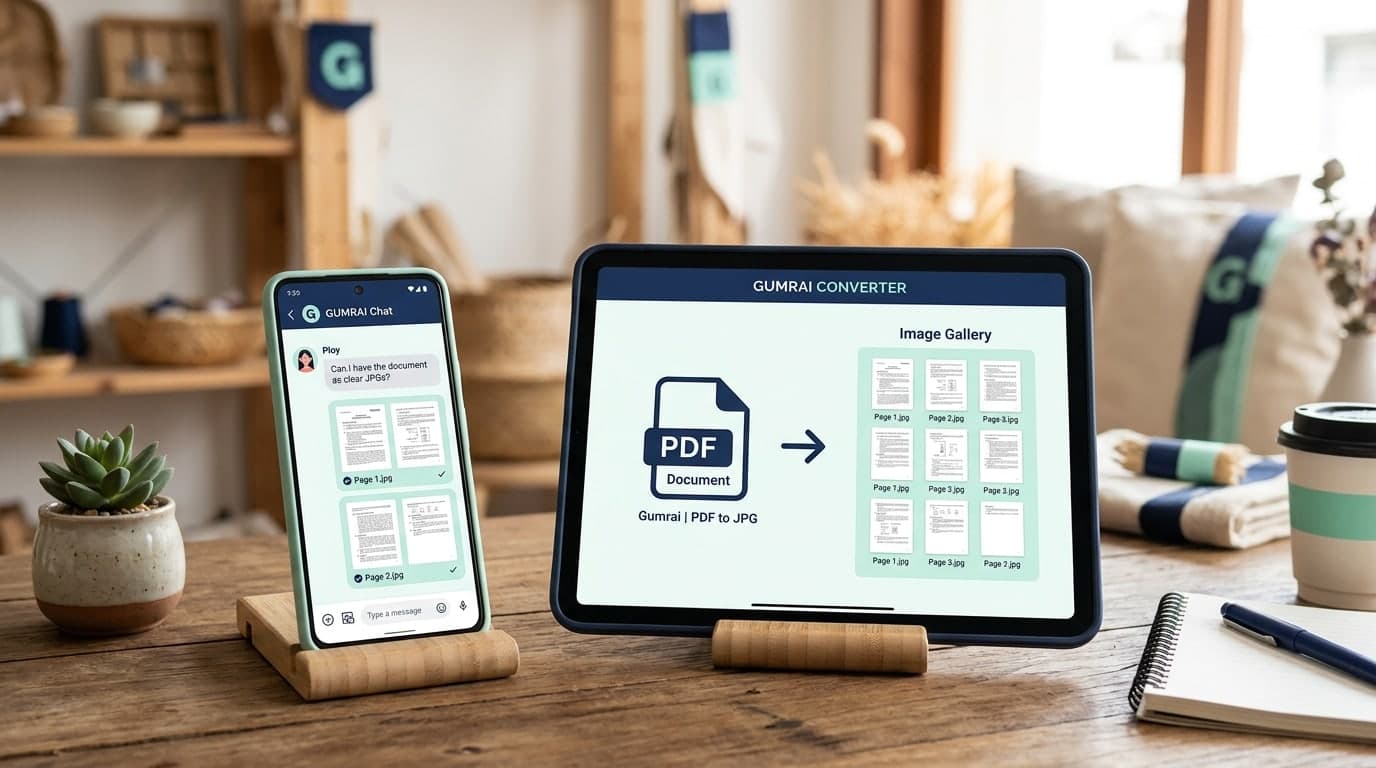
How to Convert PDF to Images for Sharing with Customers via LINE, WhatsApp, and Facebook
Why Sending Raw PDF Files in Customer Chats Hurts Your Conversions
For small e-commerce businesses and solo operators, friction is the ultimate conversion killer. Consider this common scenario: a prospective buyer reaches out via social messaging asking for a quotation or detailed catalog. In response, you send a raw PDF file. The customer, accessing your chat from a mobile device, now has to tap the document, wait for a download progress bar, open a separate viewer app, and pinch-to-zoom multiple times just to read a simple number.
In digital commerce, every extra step is a drop-off opportunity. Many buyers will simply close the chat and forget about it. Learning how to convert PDF to images for instant in-chat previewing across channels like LINE, WhatsApp, Messenger, and Instagram DM is a subtle yet highly effective tactic to keep conversations fast, frictionless, and profitable.
The E-commerce Benefits of Image Sharing Over Raw Documents
Before implementing this workflow, let's explore why visual image formats (JPG/PNG) are preferred for direct communication with buyers:
- Instant Visibility (Previews): Images render instantly within the message stream. The customer sees key details without leaving the chat app, reducing interaction friction.
- Targeted Information: Instead of sending a multi-page document that covers everything, you can convert and share the specific page containing the quote or size chart.
- Mobile-Friendliness: Photos are easier to swipe, pinch, and crop on smartphones, matching how modern shoppers consume content.
- Effortless Referrals: Customers can quickly save a PNG to their camera roll, share it with family members, or forward it to an accountant without locating download folders.
How to Convert PDF to Images on Smartphones Without Extra Apps
If you need to quickly reply to a customer using your mobile device, you can leverage these native system functions:
1. iOS (iPhone and iPad) Method
Apple devices allow you to extract image files or take full-page captures using native options:
- Open the target PDF file using the pre-installed Files app.
- Tap the share icon at the bottom-left corner.
- Select the Save to Photos action, or tap Print and use a pinch-out gesture on the preview to save specific pages.
- For quick, single-page sharing, simply zoom in on the document and take a standard screenshot, then crop out system bars.
2. Android Method
On Android, you can use built-in tools like Google Drive to handle document viewing and extraction:
- Open the document inside the default Google Drive PDF reader.
- Position the document so that the relevant content fills the screen.
- Press the Volume Down and Power buttons simultaneously to capture a screenshot.
- Open your photo editor and crop the screenshot to keep only the invoice or chart, ensuring a clean presentation.
High-Quality Desktop Methods for Crispy Text
If you are working on your store's backend computer and need the final product to look pristine, use these professional methods:
1. Browser-Based Capture (Chrome or Edge)
- Drag the PDF file directly into your browser window to display it.
- For Windows: Press
Windows + Shift + Sto open the Snipping Tool and drag a selection around the document area. - For macOS: Press
Command + Shift + 4to capture the specific page area. - Paste the captured image directly into the chat input field using
Ctrl + V(Windows) orCmd + V(macOS).
2. Native Mac Preview Export
- Open your document in the macOS Preview app.
- Go to File -> Select Export...
- Under the Format dropdown, change PDF to PNG or JPEG.
- Set the resolution to 150 or 300 pixels/inch to preserve fine print, then click Save.
Introducing Gumrai's Free Tool: Convert PDF to Image in 3 Seconds
To simplify this flow, Gumrai offers a privacy-first web tool that converts documents directly inside your browser. Because processing happens locally on your computer, your customer documents and financial records are never uploaded to our servers, keeping your store fully compliant with data privacy regulations.
Simply navigate to our PDF to Image Converter and follow these simple steps:
- Drag your PDF file into the upload zone or choose a file from your device.
- The tool displays previews of each page instantly in the browser window.
- Click "Convert to Image" to process the document locally.
- Download specific pages as individual PNGs or get the whole package as a compressed ZIP file.
Real-World Small Business Scenario
Case Study: "Siam Giftware," a small boutique shop, sent a PDF quote to a corporate buyer on WhatsApp. The buyer saw the document but didn't open it because they were traveling and lacked a PDF reader. The next morning, the seller converted the quote to a sharp PNG image and resent it. The buyer viewed it instantly on their lock screen, replied with approval, and transferred the payment in minutes.
Common Mistakes to Avoid
- Blurry Text and Numbers: Shrinking the file size too much can make invoice numbers or product prices illegible, leading to ordering errors.
Solution: Always preview the generated image on a mobile phone to ensure fine details are sharp. - Incorrect Page Orientations: Blending landscape and portrait pages in one document can result in rotated images that are frustrating to read.
Solution: Align the orientations before exporting or cropping. - Using Unsafe Public Cloud Converters: Uploading customer data to untrusted free converter sites exposes sensitive information to data leaks.
Solution: Use local tools or secure client-side options like Gumrai's PDF to Image tool.
Frequently Asked Questions (FAQ)
1. Will converting my PDF to an image affect the layout or font styling?
No. The output image is a pixel-perfect representation of the PDF page, preserving all formatting, tables, and typography.
2. Can I choose to convert only the first page of my PDF?
Yes. With the Gumrai conversion tool, you can preview all pages and selectively download only the specific pages you need.
3. Does LINE or WhatsApp have file size limits for image uploads?
Yes, but mostly for large raw files. Standard e-commerce images converted from PDFs range between 500 KB and 2 MB, which is well within limits and loads extremely fast.
4. Are my documents uploaded to a database?
No. Gumrai's utilities run client-side in your browser, meaning your business files never leave your computer.
Operational Tips for Growing Sellers
Reducing friction is the easiest way to improve sales conversions. When designing pricing sheets, catalogs, or receipts, keep an image-friendly version on hand so your team can share details in chat without delay.
To improve your visual workflow, test our free PDF to Image Tool today. While you are here, optimize your store assets with the E-commerce Resizer and protect your custom media using the Watermarking Tool.
Want to set more accurate costs and selling prices?
Try Gumrai tools to calculate profit, set prices, and manage back-office tasks to make decisions faster.