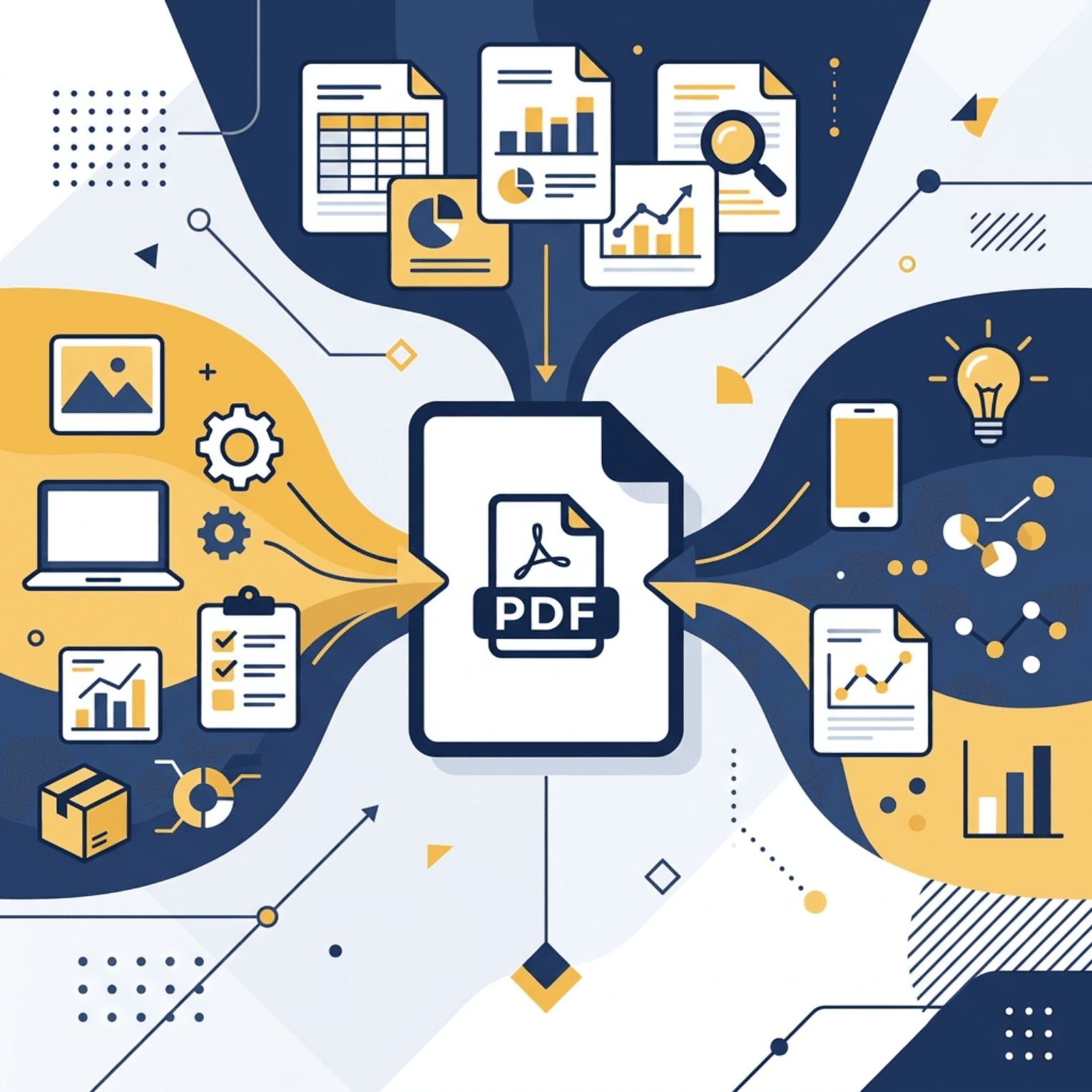
How to Merge Images to PDF and Convert Image Files to PDF for Online Sellers
Why Images and PDF Files Play a Critical Role in Today's Online Business
In the day-to-day operations of an online store, managing a large volume of document files and images is inevitable. This ranges from product images for presentations and shipping labels to quotations, receipts, and customer bank transfer slips that need to be collected for annual tax filing.
A common problem many online sellers face is scattered information. Storing slips or document images across dozens of separate files on mobile devices or computers leads to delays, confusion, and a higher chance of losing documents. Learning how to convert multiple images—such as JPG or PNG files—into a single PDF document is not just a basic tech skill, but a crucial back-office management practice that makes your online store run more efficiently and look more professional.
Advantages of Merging and Converting Images to PDF for Stores
Before looking at how to do it, let's understand why PDF is the standard file format online stores prefer for back-office documents:
- Format Integrity: Whether a PDF is opened on a mobile phone, tablet, or any computer brand, the document layout, image proportions, and text alignment remain 100% identical. Unlike normal image files, there is no risk of the system stretching or cropping the image differently.
- Security and Tamper Prevention: Editing PDF documents is more difficult than editing standard images, adding security to your store's receipts, quotations, or transfer slips.
- Single-File Simplicity: Instead of sending 10 separate shipping receipt photos to customers or accountants, you can merge them into a single PDF for easier reading, organizing, and reconciliation.
- Printing Friendly: Barcode printers, shipping label printers, and regular document printers process PDF files quickly and accurately, avoiding issues like misaligned paper or clipped edges.
How to Merge Images to PDF on Computer (Windows & macOS) Offline, Securely, and Without Internet
Many online sellers use online file converter web services. However, uploading sensitive document images containing customer personal data or financial transfers to public cloud systems poses a security risk under data privacy regulations. The safest method is to use the built-in utilities already on your Windows or macOS system:
1. Windows Method (via Microsoft Print to PDF)
Windows 10 and 11 come with a built-in PDF creation tool that requires no extra software:
- Go to the folder containing the images you want to convert.
- Select all the images you want to merge (hold
Ctrland click each image, or pressCtrl + Ato select all). - Right-click on any selected image and click Print.
- Under the Printer settings dropdown, select Microsoft Print to PDF.
- Choose your preferred paper size (e.g., A4 or Letter), orientation (Portrait or Landscape), and fit options.
- Click Print, name your PDF file, choose where to save it, and click Save.
2. macOS Method (via Preview App)
Mac users can use the built-in Preview app to merge images quickly:
- Select all target image files in Finder.
- Double-click to open them in Preview (or right-click -> Open With -> Preview).
- In the Preview sidebar, drag and drop the thumbnails to adjust the display order as needed.
- Click File in the top menu, then select Export as PDF... (or click Print and choose Save as PDF from the PDF dropdown at the bottom left).
- Enter the file name, select the destination folder, and click Save.
How to Merge Images to PDF on Mobile (iOS & Android) for On-the-Go Convenience
If you manage your online store directly from a smartphone or tablet to reply to customers and ship orders, you can use these mobile-friendly methods:
1. iPhone and iPad (iOS) Method
iOS lets you convert images directly within the Photos or Files app:
- Using the Files App: Save your target images to the "Files" app -> Select all target images -> Tap the three-dot icon in the bottom-right corner -> Select Create PDF. The system instantly merges those images into a single PDF.
- Using the Photos App: Open Photos -> Select the images -> Tap the Share button -> Select Print -> In the print preview, pinch out with two fingers on the print thumbnail to open it as a PDF -> Tap the Share button again to save or send the PDF.
2. Android Method (via Google Drive)
Android users can merge images quickly using the pre-installed Google Drive app:
- Open Google Drive and tap the plus icon (+) in the bottom right.
- Select Scan, which opens the camera.
- Take a photo of the first document or slip. Google Drive will automatically adjust it into document format.
- To add more pages, tap the plus icon (+) in the bottom-left corner and repeat the scanning process.
- Once all pages are scanned, tap Save, select the destination folder, name your file, and save it as a PDF.
Common Mistakes When Converting Images to PDF and How to Avoid Them
Although the conversion process is simple, small mistakes can impact your daily business operations. Here are the most common pitfalls and how to prevent them:
- File Size Too Large: High-resolution product photos or documents from modern smartphones can be 5-10 MB each, leading to a 50-100 MB PDF. This makes it difficult to email or upload to tax and accounting platforms.
*Solution:* Reduce image resolution before merging, or use Gumrai's Compress Image tool to shrink the images first. - Low Resolution and Blurry Text: Reducing the file size too much can make text on receipts or shipping labels unreadable, preventing barcode scanning or rendering the document invalid for legal purposes.
*Solution:* Always open the generated PDF and zoom in to verify that barcodes, amounts, and dates are sharp before sending. - Confusing Page Orientation: Mixing portrait and landscape images without rotating them makes checking documents frustrating and slow for the recipient.
*Solution:* Rotate all images to the same orientation before generating the PDF.
Frequently Asked Questions (FAQ)
1. Can I merge different image types like JPG and PNG together into a single PDF?
Yes, the built-in conversion tools on Windows, macOS, and mobile devices handle different image formats seamlessly during the merging process.
2. How is converting images offline safer?
It protects data privacy. Since all file processing happens locally on your device, no customer data or private transaction records are uploaded to third-party servers, preventing potential data leaks.
3. Why is my generated PDF blurry?
This is usually due to low-resolution source images or low printer settings. Try setting a higher print quality (e.g., 300 DPI) and ensure document photos are taken in good lighting and focused correctly.
4. Are there tools to shrink the PDF file size further?
You can use built-in PDF compression tools on your device or stay tuned for the upcoming dedicated PDF tools on Gumrai, designed specifically for online merchants.
Conclusion and Next Steps for Your Store
Organized and accurate back-office documentation prevents shipping errors, simplifies disputes, and serves as the foundation for clean tax filings. Converting images to PDF is a small step that brings massive benefits to your store's growth and stability.
To prepare, resize, or convert your product images to meet marketplace standards (Shopee, Lazada, TikTok), check out our Image Converter and Resizer. To shrink slip photos before sending, try the Compress Image tool. Both are free, easy to use, and process everything instantly.
Additionally, the Gumrai team is currently developing an all-in-one web-based "Image to PDF" utility, allowing you to drag and drop slips or invoices to merge them into a single PDF right from your browser. Stay tuned for this and more seller tools coming soon!
Want to set more accurate costs and selling prices?
Try Gumrai tools to calculate profit, set prices, and manage back-office tasks to make decisions faster.