
DAY 04 · PLATFORM SETUP
Turn two platforms into one clear workflow
A common beginner problem appears after the analysis is already done: the TradingView chart looks clear, but the matching instrument is hard to find in MT5, the quote is slightly different, or the H1 bar closes at another time. The mistake is to assume that both screens must be identical.
This lesson builds a practical workspace. TradingView handles chart analysis and visual organisation; MT5 connects to the trading account, exposes the provider’s contract settings, and handles execution. The two tools can support the same plan without sharing the same feed, session, or bar boundaries.
KNOW THE SCREEN
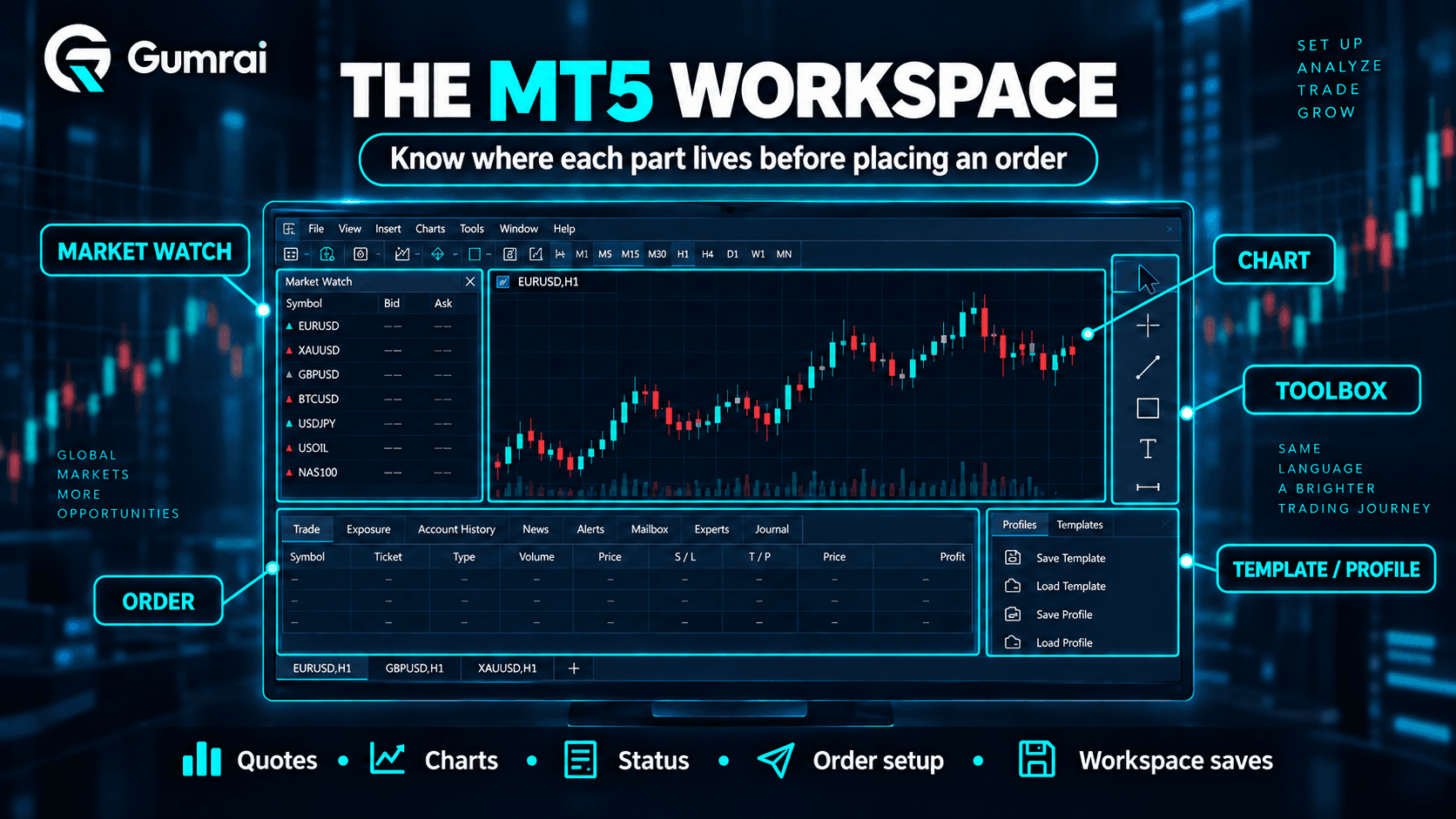
Know where to look before touching the order ticket
Market Watch
The symbols and Bid/Ask quotes visible to this account. Use it to add instruments, open charts, and reach Specification. Read the complete name, including any suffix.
Chart
The price-analysis area where chart type and timeframe are selected. MT5 supports multiple chart windows and 21 standard timeframes from M1 to MN1.
Toolbox
The lower panel for Positions, Orders, history, alerts, and journals. It is where you verify what the terminal accepted and which errors it reported.
Order window
The ticket for symbol, volume, order type, Stop Loss, and Take Profit. This lesson locates the controls; the next lesson explains order types.
METATRADER 5
Set up the execution side first
1. Find the complete symbol
Open Market Watch with Ctrl+M. Add the instrument from the input row or open Symbols with Ctrl+U. EURUSD, EURUSD.a, and EURUSDc are not interchangeable labels: the available name, suffix, and permissions come from the connected account and server.
2. Open Specification before planning volume or stops
Right-click the intended symbol and open Specification. Read contract size, minimum and step volume, stop distance where provided, swap method, and trading sessions. These are account-specific operating conditions—not universal values that should be memorised.
3. Open and clean the chart
Open a chart from Market Watch, choose the intended chart type and timeframe, and remove anything that does not support the plan. Chart Properties can control colours and displayed lines. If an Ask line or trade levels are useful to your workflow, enable them deliberately rather than assuming they are already visible.
4. Keep Toolbox visible while testing
Use Ctrl+T to show Toolbox. The Trade, History, and Journal areas help distinguish what is open, what has completed, and what the terminal or an EA reported. A clean chart is not enough if the operational status is hidden.
TRADINGVIEW SUPERCHARTS
Configure the analysis side without confusing the feed
Symbol and data provider
Search the instrument and read the provider name too. The same ticker can come from different feeds; do not select the first result without reading the full label.
Interval and chart type
Choose intervals from the top toolbar and favourite only those used in the workflow. The right-most bar remains incomplete until its interval ends.
Watchlist
Add symbols with + and keep the list focused. A watchlist aids navigation but does not prove the item is the same contract as the MT5 account.
Settings, timezone, and session
Configure colours, lines, price display, and timezone for the task. Session options depend on the instrument and available data; record them when comparing with MT5.
TWO-TIMEFRAME WORKSPACE
Read context first, then inspect detail
Place the same symbol on two views. Use a higher timeframe such as H1 or H4 to read broader structure and key zones, then a lower timeframe such as M15 or M5 to inspect detail. This arrangement does not create an entry signal and does not guarantee that a lower-timeframe pattern will work.
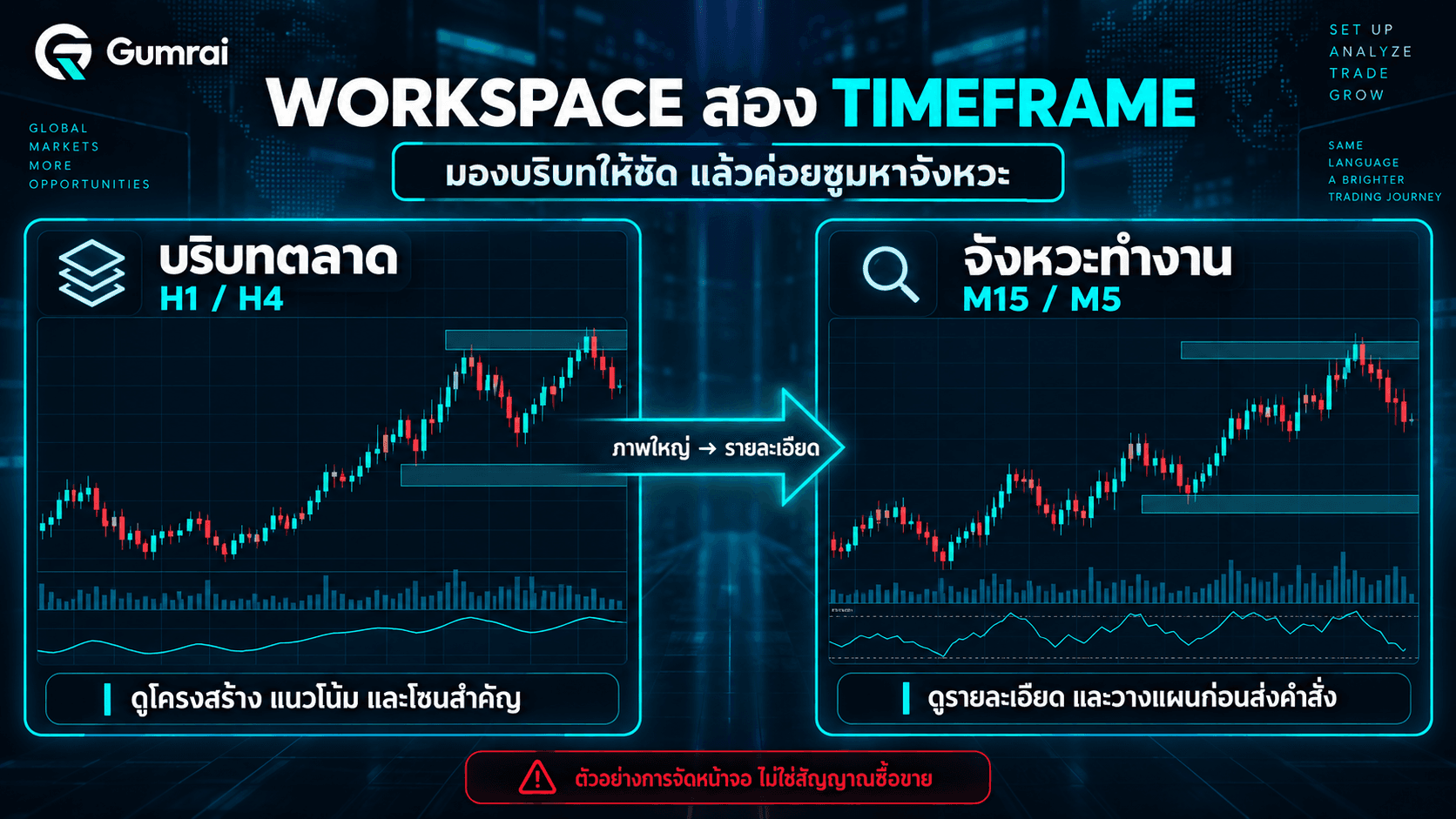
In TradingView, multi-chart layouts and some synchronisation options depend on the active plan. If only one chart is available, switch intervals deliberately or use separate tabs. In MT5, open two chart windows and arrange them from the Window menu.
MT5 VS TRADINGVIEW
Same workflow, different responsibilities
| Compare | MetaTrader 5 | TradingView |
|---|---|---|
| Primary job | Connect an account, inspect Specification, execute orders, manage Positions, and run EAs. | Analyse charts, draw structure, organise watchlists, and set alerts. |
| Price source | The feed and conditions of the logged-in account server/provider. | The data-provider ticker selected in Symbol Search. |
| Save one chart | Chart Template | Indicator Template and chart settings within a Layout. |
| Save workspace | A Profile stores the chart group and arrangement. | A Chart Layout stores charts and arrangement; watchlists and alerts are separate from the Layout. |
| Limitations | Symbols, sessions, and functions depend on the server and account. | The number of charts and some features depend on the active plan. |
SAVE YOUR WORK
Save the chart and the workspace as different things
MT5 Template
Stores colours, indicators, and properties for one chart so they can be applied elsewhere.
MT5 Profile
Stores the open chart group, sizes, and arrangement so the workspace can be restored.
TradingView Layout
Stores TradingView charts and arrangement, but watchlists and alerts are not part of the Layout.
READY CHECK
Eight checks before practice
DO NOT MISS
Six errors that make a clean screen misleading
- Do not force the two platforms to match tick for tick; symbol, feed, session, and timezone may differ.
- If a symbol is missing, open Symbols and search the complete name and suffix before concluding it is unavailable.
- Never place stops or size volume from memory; read this account’s Specification.
- Do not compare H4/D1 bars without checking each platform’s bar boundaries.
- Do not treat the current bar as final; its shape can change until the interval closes.
- A clean workspace is not a trading signal; it only reduces workflow errors.
GUMRAI WORKFLOW
Prepare the exact market each tool was designed for
GUMRAI ORB VX EA
Designed for XAUUSD on M15 in MetaTrader 5. Before use, verify the complete symbol, suffix, Specification, server, and trading session on demo.
GUMRAI DUO FX
Designed for EURUSD, USDJPY, USDCAD, and AUDUSD. Check each provider-specific symbol and account condition; it is not designed for gold, indices, or crypto.
TradingView can support visual analysis, while EA execution occurs in MT5. Correct setup reduces technical errors; it does not guarantee profit.
HANDS-ON PRACTICE
Build and verify the workspace yourself
1Open Market Watch, add EURUSD and XAUUSD, and record each complete symbol name.View answerHide answer
2Open two charts of the same symbol and arrange H1 beside M15.View answerHide answer
3In TradingView, find EURUSD and record the selected data provider, timezone, and interval.View answerHide answer
4Save one chart’s colours and indicators as a Template, then save the chart group as a Profile.View answerHide answer
5Compare the same symbol on MT5 and TradingView and identify at least three differences.View answerHide answer
KNOWLEDGE CHECK
Three questions with explained answers
1. What should you use to save the colours, indicators, and settings of one MT5 chart?
- A) Profile
- B) Chart Template
- C) Watchlist
Open explanationHide explanation
2. Why can an H4 chart differ between TradingView and MT5?
- A) One platform must be wrong
- B) Data provider, session, and bar boundaries may differ
- C) H4 has no definition
Open explanationHide explanation
3. Which division of roles best matches this workflow?
- A) TradingView for analysis and visual organisation; MT5 for contract checks and account execution
- B) Both must show identical prices before use
- C) MT5 is only for chart viewing
Open explanationHide explanation
SUMMARY
Five ideas to carry into the next lesson
- 1TradingView supports analysis and visual organisation; MT5 connects the account to operations.
- 2Symbol, suffix, and Specification must be checked on the active account.
- 3Quotes and bars can differ because of feed, session, timezone, and the still-open bar.
- 4A Template stores one chart; a Profile or Layout stores the workspace.
- 5A two-timeframe workspace organises the process; it is not a signal or a performance guarantee.
For education only—not investment advice or a trading signal. Leveraged forex and CFD products can cause rapid losses. Practise platform setup on a demo account and verify the provider’s current contract conditions before use.
VERIFIED OFFICIAL SOURCES
Official documentation checked for this lesson
References are grouped here so the lesson remains readable without citation numbers after every paragraph. Features and plan limits can change; recheck the provider documentation before use.
- MetaTrader 5 Help — User Interface
- MetaTrader 5 Help — Market Watch
- MetaTrader 5 Help — View and Configure Charts
- MetaTrader 5 Help — Templates and Profiles
- MetaTrader 5 Help — Executing Trades
- TradingView Help — Getting started with Supercharts
- TradingView Help — TradingView layouts: a quick guide
- TradingView Help — Mastering the TradingView watchlists
- TradingView Help — Time intervals: introduction and tips
- TradingView Help — How to configure your Supercharts